5Stack Discord Bot
5Stack includes a Discord bot that can be used to manage your server and provide additional functionality.
What it does
The bot creates 5Stack matches from the players sitting in a Discord voice channel:
| Command | Creates |
|---|---|
/competitive | A Competitive match |
/wingman | A Wingman match |
/duel | A Duel match |
/rush | A Rush match |
/link | Not a match: links your Discord account to 5Stack for stat tracking |
The match commands take the players from the voice channel you're in, or the one you pick with team-selection, which needs enough people for the format (10 for Competitive, 4 for Wingman, 2 for Duel, 6 for Rush). Lineups are random unless you turn on captains (optionally naming captain-1 and captain-2), in which case the captains pick. Other options set knife, overtime, the map or a custom-map-pool, and mr (MR3, MR8, MR12 or MR15).
The bot then opens a thread for the match, runs the map veto with buttons, posts match status updates, and makes a voice channel for each team and moves the players into them.
Tournaments can use the bot for voice too: with a Discord Server ID under a tournament's Voice Channels settings, it creates channels for tournament matches and moves players into their team's channel when a match begins.
What gets posted to your Discord as notifications is configured separately; see Integrations.
Guide
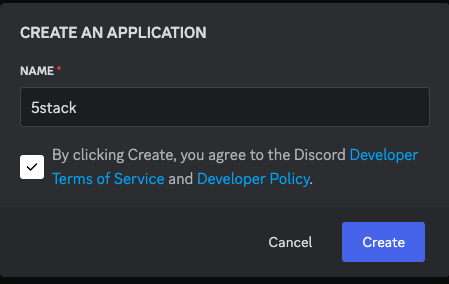
First. You need to create a new application in the Discord Developer Portal.
New Application
Installation Tab
Only allow Guild Installs and set Install link to
none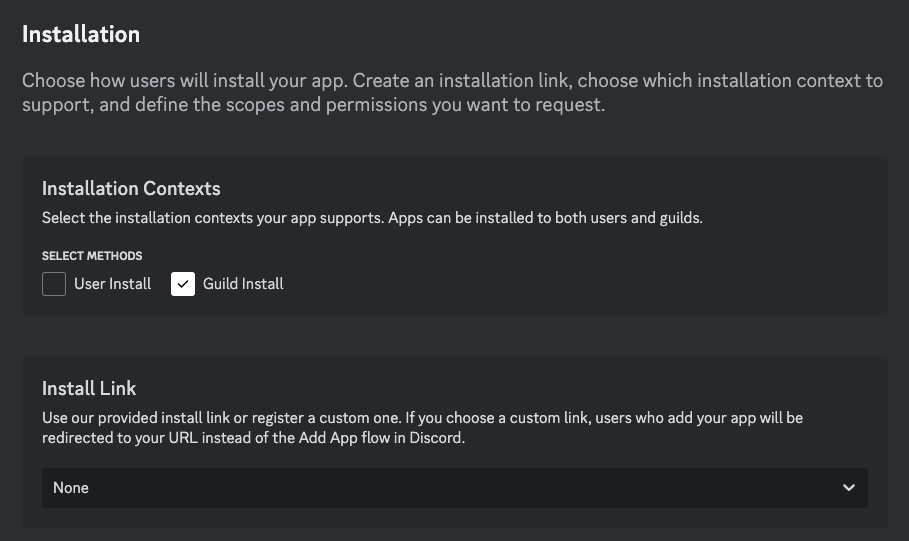
Oauth Tab
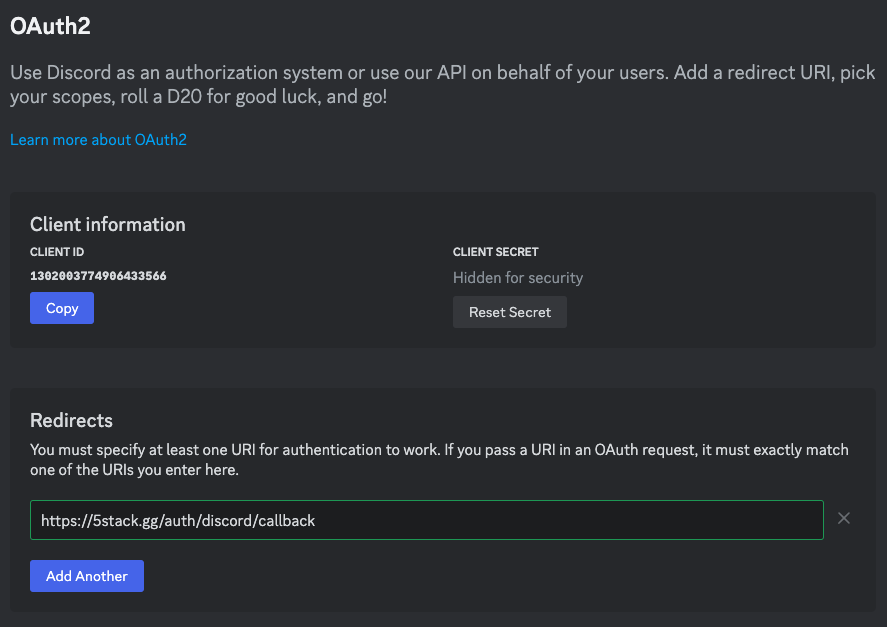
- Update the Redirect URL to your
WEB_DOMAINURL, which can be found inINSTALL_DIR/overlays/config/api-config.env. - Update the
INSTALL_DIR/overlays/local-secrets/discord-secrets.env. You need to update both theDISCORD_CLIENT_IDandDISCORD_CLIENT_SECRET.
- Update the Redirect URL to your
Bot Tab
- You will need to reset the bot token to get a new one.

In the file
INSTALL_DIR/overlays/local-secrets/discord-secrets.env. You need to update theDISCORD_BOT_TOKEN. 2. Disable Public Bot
Update the Panel
See Update Guide for instructions on updating the panel.
- Invite the Bot to your Server
The Discord Bot can only be invited to a server by an administrator, and it can be accessed at the WEB_DOMAIN URL: https://<WEB_DOMAIN>/discord-bot.