Browser Console
The browser console is a page on get.5stack.gg where you manage your panel's server from your browser. Its tab says 5Stack Connector. You update the panel, change its settings, add plugins, set up GPU nodes, look after backups and read logs, all with buttons, and without keeping an SSH session open.
Use it for work on the server itself. Matches, players, game plugins and the panel's own admin settings stay in your panel.
Open it
You need root on the panel server to open the console, and the Steam account that claimed the panel to sign in to it.
On the panel server
sudo 5stack uiIt prints a link to the console:
==> 5Stack UI is ready
    https://get.5stack.gg/ui/R4TW-81JC#k=age1…&s=…&p=panel.example.gg
    It turns off after 30 minutes idle, or when you press End Session.
    Press Ctrl+C to end this console.
On a server with a desktop, it opens the link in your browser. Over SSH, it also copies the link to your computer's clipboard in terminals that allow it, such as iTerm2, WezTerm, Ghostty and kitty. Otherwise, copy the whole line, including the part after #.
Leave the command running while you use the console. sudo 5stack ui --link prints only the link.
From your own computer
Install the 5stack command on your Mac or Linux computer. It needs no sudo and goes in ~/.local/bin:
curl -fsSL https://get.5stack.gg | sh -s -- clientThen open the console of any panel you can SSH into, using a host from your SSH config or user@host:
5stack ui my-serverIt runs sudo 5stack ui --link on the server over SSH, which may ask for your sudo password there, and opens the link in your browser. Ctrl+C ends the console.
With sudo 5stack
On a claimed panel, sudo 5stack on its own opens the console too, and prints its link. Press Enter to close it and open the terminal menu instead, or Ctrl+C to close it.
Sign in
The console asks you to sign in on 5stack.gg with the Steam account that claimed the panel, then brings you back. Any other account is refused, and the server logs who tried. If you sign out of 5stack.gg, the console signs you out too.
A panel nobody has claimed yet can't open a console: sudo 5stack ui prints the claim link instead. Claim it, then run sudo 5stack ui again.
When it ends
A console closes when:
- you press End Session in the account menu, at the bottom of the sidebar,
- you press Ctrl+C in the terminal that opened it, or that terminal closes, such as when SSH drops,
- 30 minutes pass without you opening a page or running anything,
- it has been open for 7 days,
- nobody signs in within 15 minutes of the link being made,
- someone opens a new console on the server, or runs
sudo 5stack ui --end.
If something is still running when you press Ctrl+C, the console closes once it finishes. After it closes, the link stops working: run sudo 5stack ui for a new one.
Why it's safe
- The link's secret never reaches a server. It sits after the
#, which browsers keep to themselves. The page uses it, with your server's key from the same link, to encrypt and sign everything it sends. - get.5stack.gg only passes messages along. Your browser and your server talk through it, encrypted end to end, so 5Stack can't read what you do or change it on the way.
- Your server checks your sign-in itself. It asks 5stack.gg directly whether you're the account that claimed the panel.
- There's no box for commands. You can't type a command for the server to run. Every button sends one of a fixed set of actions, and the server checks each one, with its values, before it runs it.
- Changes ask first. Before anything that restarts, installs or removes something runs, the page says what it affects, such as No restart or Holds new matches until live matches finish, and waits for you to confirm.
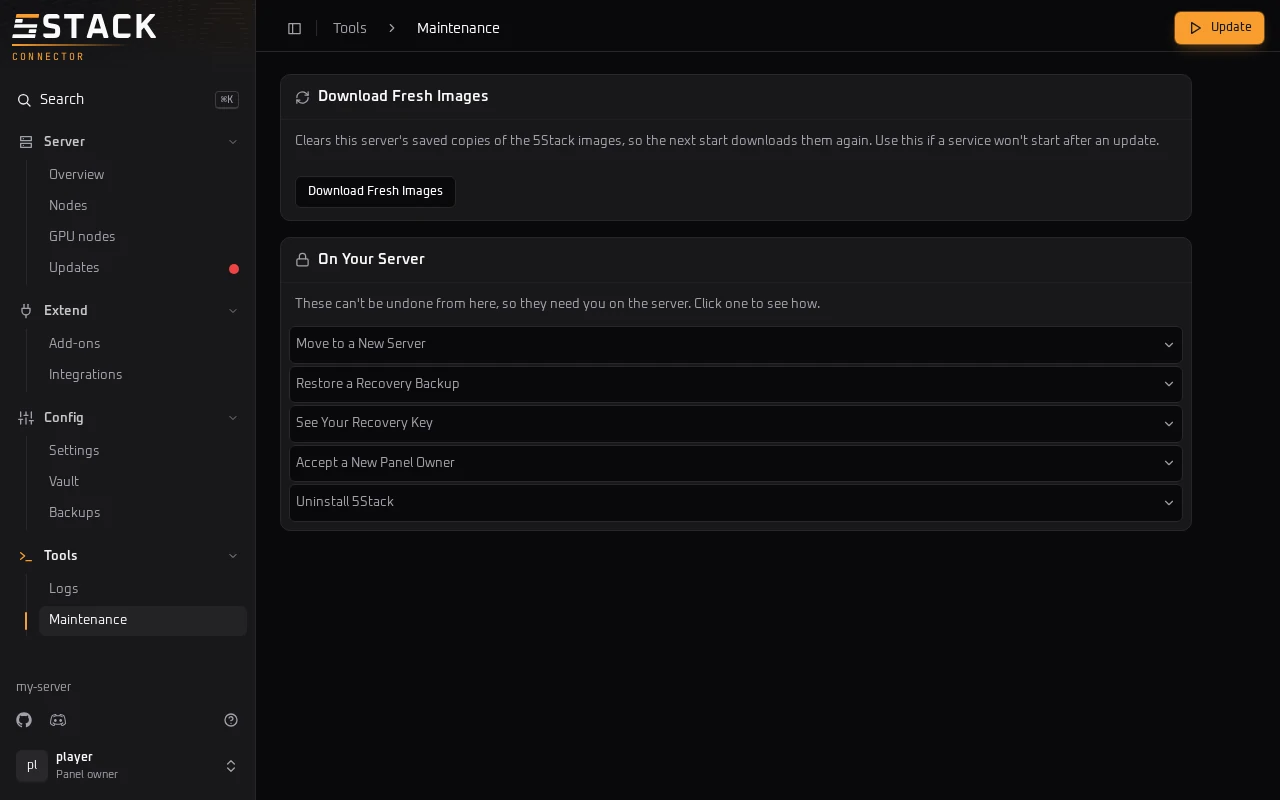
- What can't be undone stays on the server. Moving the panel, restoring a recovery backup, showing the recovery key, accepting a new owner and uninstalling aren't in the console. Maintenance shows how to do them on the server.
- Everything is logged. The 5Stack service logs each sign-in with its IP address and browser, and every page opened and everything run after it. See them with
journalctl -u 5stack.
Pages
The sidebar groups the pages. Search, or ⌘K or Ctrl+K, jumps to any page by name.
Anything you run shows its progress in a panel at the side, with Stop to stop it. The console runs one thing at a time. When an update is out, or saved settings are waiting, Update appears at the top of every page.
Server
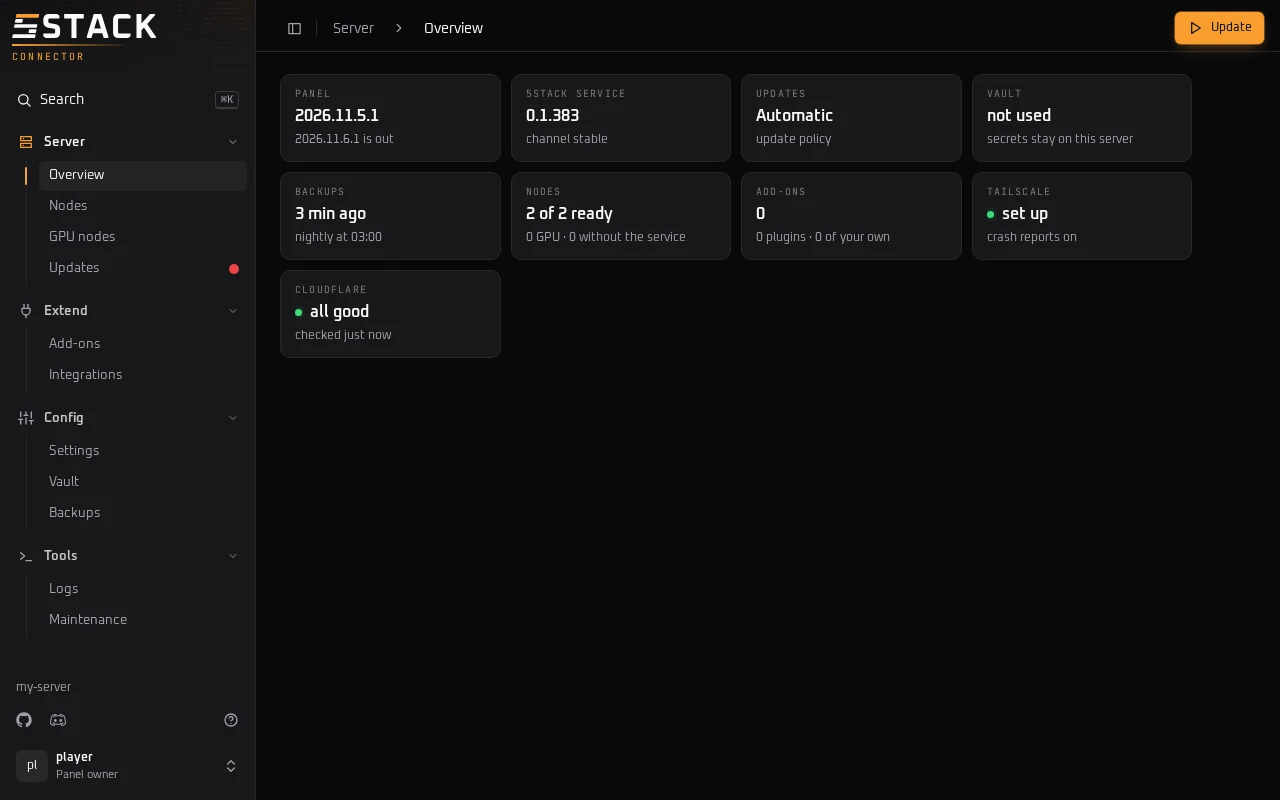
Overview shows the server at a glance. Each card opens its page:
- Panel: the release it runs, and whether a newer one is out.
- 5Stack service: its version and release channel.
- Updates: the update policy.
- Vault: whether the panel keeps its secrets in Vault.
- Backups: when the last backup ran, and whether nightly backups are on.
- Nodes: how many are ready, how many are GPU nodes, and how many don't have the 5Stack service yet.
- Add-ons: plugins and add-ons of your own.
- Tailscale: whether it's set up, and whether crash reports are on.
- Cloudflare: all good, or how many things need fixing, when the panel uses Cloudflare.
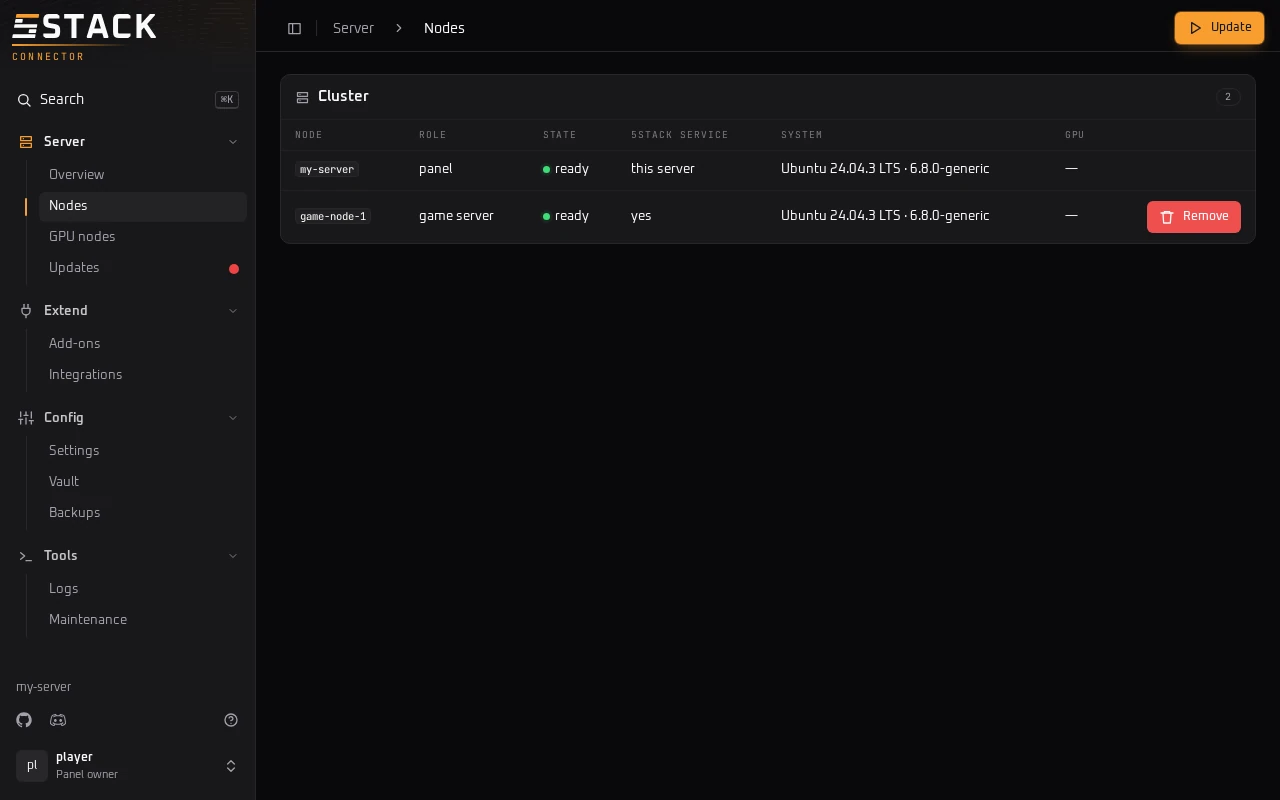
Nodes lists every node: its role, whether it's ready, whether it has the 5Stack service, its system and its graphics card. Remove uninstalls 5Stack from a game server node and takes it out of the panel. Nodes added with the old install script get Give Them the Service.
GPU nodes finds the graphics cards on your nodes. Switch on the nodes to use for streaming and clips, set the Steam account they sign in with and the streaming address, then press Apply Changes. If it finds no cards, Set Up GPU Nodes walks you through the brand, the nodes, the Steam account and a review. See GPU Nodes.
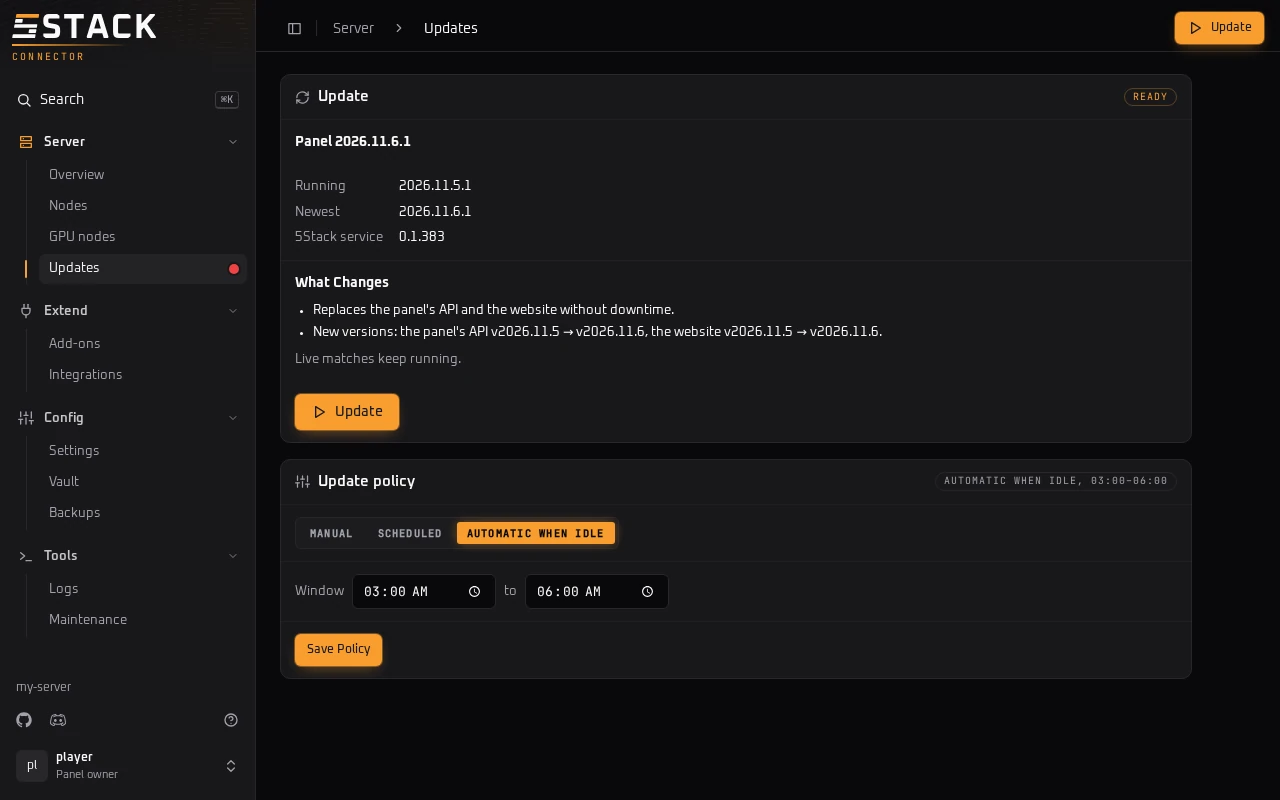
Updates shows the release you run and the newest one, and before you update, what the update changes: which services restart, which versions change, and whether it holds new matches. Pick the update policy here: Manual, Scheduled or Automatic When Idle, with the time window. See Updating.
Extend
Add-ons has three tabs. Installed opens, reinstalls or removes what you have. Browse installs plugins from the plugin directory, or from a GitHub link. Your Own starts, moves, stops and removes add-ons of your own, and Add From a File uploads one as a .zip of up to 8 MB. An add-on runs with full control of the server, so only upload one from someone you trust. Plugins for your game servers are in your panel instead.
Integrations checks Cloudflare when the panel uses it: each address, the settings 5Stack relies on, and suggestions such as Tiered Cache. It also sets up and re-deploys the Cloudflare Workers 5Stack offers: the Backblaze proxy, the Playcast edge relay and the stream edge relay. See Backblaze + Cloudflare and Playcast Edge Relay.
Config
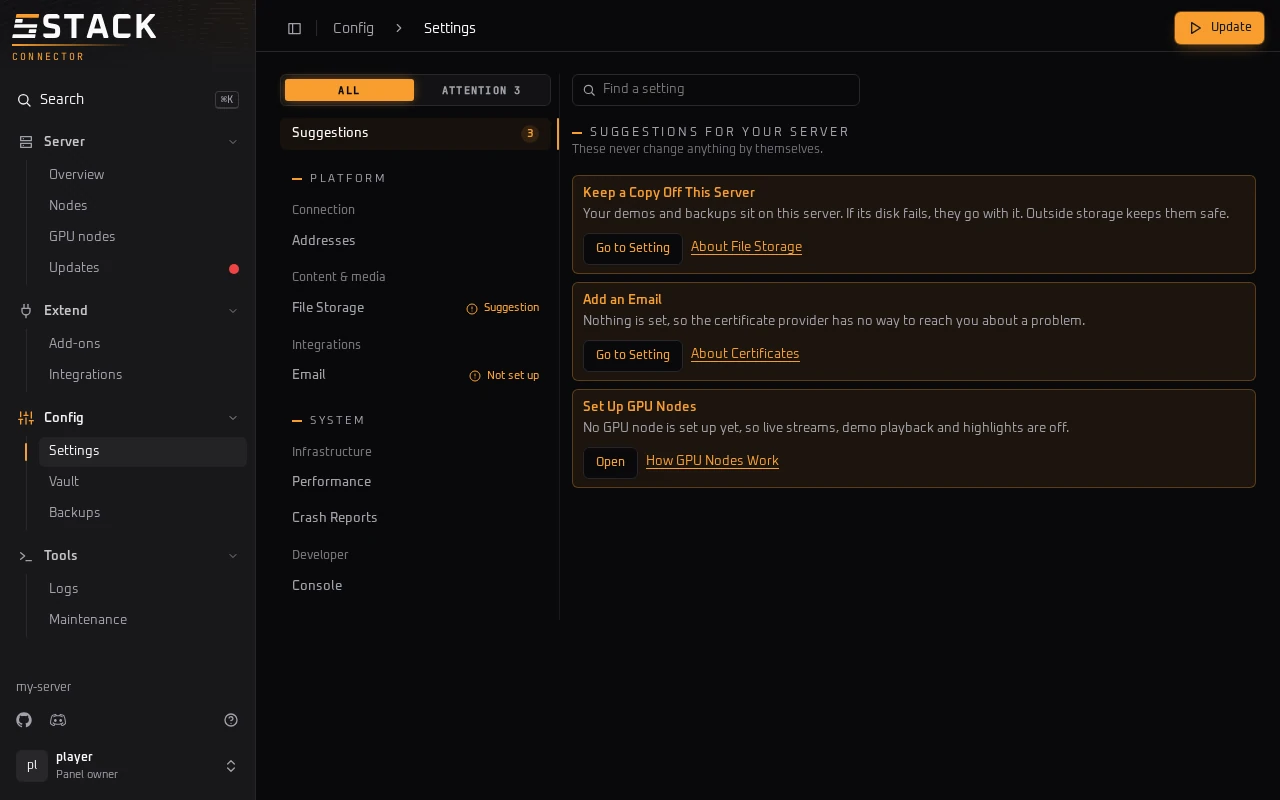
Settings opens on suggestions for your server, which never change anything by themselves. Every setting is grouped by what it's for, and Find a setting searches them. Saving restarts nothing: the change applies when you press Update. Crash reports and Show Advanced Features, which shows the live log of updates as they run, switch on and off here. See Diagnostics.
Vault is for panels that keep their secrets in HashiCorp Vault. It shows whether Vault answers, when it was checked and last synced, and any secret that isn't syncing. Check Now checks again, and Resync and Add the Missing Secrets fix what it finds. See HashiCorp Vault.
Backups has a tab for each kind of backup. Database Backups lists the panel's nightly backups and restores one. Recovery Backups runs Back Up Now, turns nightly recovery backups on, and shows how to restore one or move to a new server. See Backups.
Tools
Logs reads the logs of the 5Stack service, k3s and the panel's services, up to 6 at once. Follow them live, filter by level or text, and download what you see. Make a Bundle makes a debug bundle with Steam IDs, IPs, emails, chat and player names removed, to download or send to 5Stack.
Maintenance fixes certificates that aren't valid, and Download Fresh Images helps when a service won't start after an update. On Your Server lists what can't be undone from a browser, with the command to run on the server.